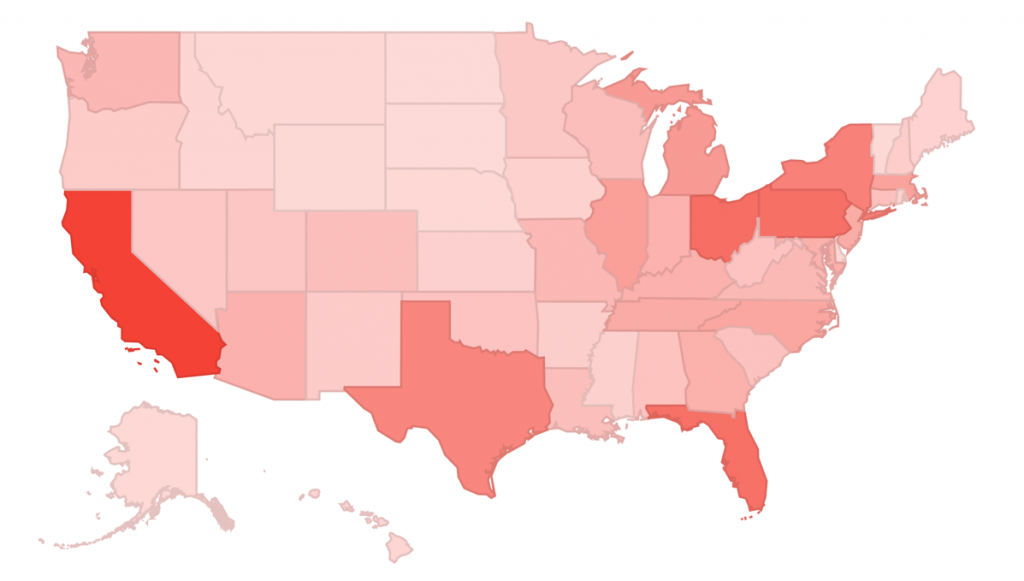
Segmentation is the mother of all website optimization. That’s an extreme statement, but I believe anyone in the field would think twice before disagreeing with it. Segmentation enables us to understand who are our customers and how different groups of people behave on the website; this information is extremely valuable in order to provide a a richer and more relevant experience to customers. The result is a happier customer, a more profitable website, and more bonuses to Web Analysts!
That’s why Avinash Kaushik is so vehement when he writes: The Choice Is Stark: Segment Or Die! According to him: “if you simply sit and ponder for a few minutes it will be clear that your website exists to do many different jobs and people come to your website to accomplish many different goals. So why analyze your data as one big ugly glob?”

Google Analytics provides several out of the box ways to segment your visitors into groups. For example, it is possible to segment by GEO location, Browser, Operating System, Traffic Source, Visitor Type (New vs. Returning), Content Viewed, Goal Completion, and the list goes on…
But beyond a shadow of a doubt, the most powerful segmentation feature on Google Analytics is the Custom Variable. I like to play with the idea that Custom Variables are so important that they should have their own tab in the Google Analytics sidebar navigation, and that this tab should be significantly prominent. Here is a mockup for the Google Analytics team, feel free to use!

Below I discuss a proper definition of Custom Variables, where it should be used, how to plan its implementation, and some additional tips and tricks.
Custom Variables Definition
According to the Google Analytics Code site, Custom Variables can be defined as:
Custom variables are name-value pair tags that you can insert in your tracking code in order to refine Google Analytics tracking. With custom variables, you can define additional segments to apply to your visitors other than the ones already provided by Analytics.
The important part of this definition is that you, as the website owner, can define the segment that you want to apply to specific visitors. The missing part of this definition is that you can apply it to your visitors only after they actively do something on the site. For example, you can define someone as a male or female only after he or she fills in that information on the site. That may seem obvious, but it is important.
Custom Variables Model & Hierarchy
The power of Custom Variables is partly due to its hierarchy, the possibility to define whether the segment you are creating will last only for the current page visited by a visitor, the current visit of a visitor, or “to infinity … and beyond!” (i.e. for as long as visitors keep their cookies).
I will go over some examples below, but before it is important to understand how Custom Variables are defined, their grammar. First, as mentioned above, we can use different levels, meaning that the variable will be saved for different periods of time:
- Visitor Level — this will modify the visitors’ cookies for as long as they use the same browser and device and do not erase cookies. As we will see below, we use this level to keep unique information about a visitor, such as subscriptions, purchases, and demographic characteristics provided by visitors in a form. A way to overcome the limitation of multiple browsers and devices would be to update the visitor’s cookies every time he or she logs in to the website.
- Session Level — this modifies the visitors’ cookies for the period of time during which the visitor is active on the site. Very useful to track internal campaigns, such as banners on the homepage.
- Page Level — this modifies the visitors’ cookies for activity on a specific pageview or event. Usually it will be used to group behavior in different sections of a website.
But before you start jumping out of joy, please note that if you are using the free version of Google Analytics you have only 5 slots. That means you have to think carefully before you implement them. If you are a lucky person, and you have Google Analytics Premium, you will have 50 slots available, which is a lot!
As I mentioned above, this is not an out of the box feature, so you will need to implement code in order to collect this data. Below is the code and the explanation for each parameter:
_setCustomVar(index, name, value, opt_scope)
index (required) — The slot for the custom variable, it can range from 1 – 5 for standard accounts or 1-50 for Premium accounts.
name (required) — The name for the custom variable, a string that identifies the custom variable and appears in the top-level Custom Variables report of the Analytics reports. For example, if you are using a slot to track gender, the name would be ‘Gender’.
value (required) — The value for the custom variable, it appears in the table list of the UI for a selected variable name. Typically, you will have two or more values for a given name. Using the ‘Gender’ example above, the values would be either ‘Male’ or ‘Female’.
opt_scope (optional) — The scope for the custom variable. As described above, the scope defines the level of user engagement with the site. It is a number whose possible values are 1 (visitor-level), 2 (session-level), or 3 (page-level). When left undefined, the custom variable scope defaults to page-level interaction.
Where Should a Custom Variable Be Used?
As mentioned above, standard Google Analytics users have only 5 slots available. So it is important to plan Custom Variables implementation effectively. The most important thing is to be careful when overwriting slots.
For example, if you use slot 1 to track visitors who register to the website, do not use it to track visitors’ gender as well, one will overwrite the other. However, you might consider using slot 1 to track Purchase, as if you know someone purchased something, you don’t need to know he ius registered anymore, so overwriting it is OK. For visit and page level variables it is easier plan, but note that if you trigger two different variables in one visit, the last one will get the full credit for all the visit.
Below I provide examples of usage for each Custom Variable level.
Visitor Level Custom Variable
Let’s suppose you have the following registration form on your website (screenshot below). Your visitors have to enter all that information in order to register, which means you can use any of it in your custom variables, right? Wrong! The first rule you need to know is that tracking Personal Identifiable Information is against Google Analytics Terms of Service (see section 7). Therefore, you should not add emails and names to your custom variables.

Using the example above, you would probably want to track the following using a Visitor Level Custom Variable:
- Account Type: tracking whether a particular visitor is a ‘musician’ or ‘personal’ would provide important insight on how differently these groups behave on the website. Apparently this is an important piece of information for the business since it is high up in the form.
- Birthday: tracking the birthday year would segment visitors by age, which could be valuable when providing targeted content to visitors.
- Gender: important to understand which content is valuable to which gender. Men and women behave very differently on the web (here is research proving it).
Visit Level Custom Variable
Visit Level Custom Variables are extremely valuable when tracking internal campaigns. Let’s suppose you have an Ecommerce website and you are advertising different products on your homepage. If you trigger a Custom Variable (using an onclick event) for each of the product in your homepage you will be able to understand which products are driving more sales from the homepage. This will be extremely valuable when defining how to organize your content in a data-driven way.

Please note that while this might sound like Science fiction to some people, the implementation should be very simple (considering standard conditions for temperature and pressure). Here is a similar code of what you would add to you HTML link tag: onclick=”_gaq.push([‘_setCustomVar’,1,’Home Campaign’,’Galaxy Nexus’,2]);”
Page Level Custom Variable
Page Level Custom Variables should be used in order to group actions performed in different sections of the website. Here are a few examples:
- Aggregating authors: for content websites with multiple authors, the Custom Variable can be used to group posts by author in order to understand which authors drive engagement.
- Aggregating categories םר subjects of interest: for all types of websites, this would be useful to learn which brands or category of content (such as tags or product type) is driving engagement.
Custom Variables for Ecommerce
When it comes to using Custom Variables for Ecommerce websites, Justin Cutroni provides a very useful list of ideas (implementation and analysis details on this link):
- Tracking Coupon Codes and Promotional Codes
- Tracking Payment Method
- Tracking Shipping Method
- Tracking Repeat Customers
- Purchase History
Advanced Tips & Tricks
Here are four advanced issues you should keep in the back of your mind:
- Call the _setCustomVar() function BEFORE a pageview or event, otherwise it won’t be sent to Google Analytics.
- Do not use duplicate key names across slots, this will mess with the data.
- You can trigger up to 5 simultaneous custom variables in a request (e.g. pageview or event ).
- The name-value combination must be less than 128 characters.
Concluding Thoughts
As mentioned above, Custom Variables are the most powerful segmentation feature on Google Analytics, it enables marketers to understand their visitors better. On The Choice Is Stark: Segment Or Die! Avinash starts by saying:
There is a reason your analytics data does not make any sense. There is a reason you are unable to find an iota of insight that you can action. There is a reason you feel data is your enemy. You see, you are not following one of the holiest of holy covenants when it comes to data analysis: Segmentation.
If you are among this group, get started now!